

Contents18
- The short answer — HDMI when in doubt, DisplayPort for 4K high-refresh
- In practice, the field narrows to five connectors
- HDMI — the shared standard for TVs, consoles, and PCs
- Version differences come down to “how many Hz at 4K”
- DisplayPort — the standard for PCs, GPUs, and high-refresh use
- Version differences are gentler than HDMI’s
- Watch out: turning a monitor off resets your window layout
- USB-C (DisplayPort Alt Mode) — bundling a laptop into one cable
- Watch out: what the device supports decides what you get
- DVI — the pioneer of digital video; not worth buying new
- VGA (D-Sub) — analog, for keeping older gear alive
- Comparison — five connectors by resolution, best use, and adoption
- How to choose — three questions, in order
- 1. Also connecting a TV or console → HDMI
- 2. Gaming, 4K 120 Hz, multi-monitor → DisplayPort
- 3. Docking a laptop with a single cable → USB-C
- FAQ
- Wrapping up
2026 update: ported from the old VuePress blog. The framework — how each connector is positioned — still holds, but the latest-generation specs (HDMI 2.1, DisplayPort 2.1, USB4) are worth checking against current official figures.
You buy a PC and a monitor, and the cable ends don’t match. HDMI, DisplayPort, USB-C, DVI, VGA — which one is the right one to plug in.
This piece lines up the five video connectors and how to pick between them by use case. By the time you finish, you should be able to narrow the cable you need down to one.
The short answer — HDMI when in doubt, DisplayPort for 4K high-refresh
Short answer: HDMI strikes the safest balance between adoption and performance. TVs, game consoles, and most monitors all have it, so one cable tends to connect almost anything.
The optimum shifts with use case:
- 4K / high refresh rate / multi-monitor: DisplayPort
- Laptop, video and power over one cable: USB-C (DisplayPort Alt Mode)
- Office use, just needs to display: whatever cable you have lying around (HDMI or DVI, either is fine)
Conversely, there’s almost no reason to pick DVI or VGA for a new purchase. Only consider them when keeping an older device alive.
In practice, the field narrows to five connectors
Short answer: the video connectors still in use around a PC come down to HDMI, DisplayPort, USB-C (Alt Mode), DVI, and VGA. Thunderbolt shares the physical USB-C connector, so it’s grouped under USB-C here.
How each connector sits
- HDMI — most widespread across home electronics and PCs. The default when in doubt
- DisplayPort — biased toward PC and graphics cards. Strong on high resolution and high refresh
- USB-C Alt Mode — bundles video, power, and data into one cable on a laptop
- DVI — the pioneer of digital video. Almost never worth buying new
- VGA — analog. For keeping older gear alive
HDMI — the shared standard for TVs, consoles, and PCs
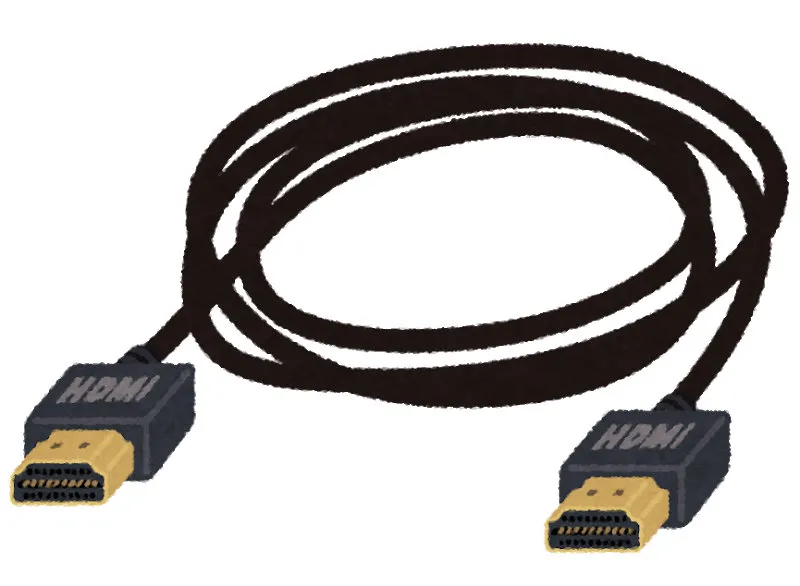
What HDMI is
A digital connector that carries video and audio over a single cable. Standardized in 2002, it’s been adopted across TVs, monitors, game consoles, and PCs — the single most widespread video connector today.
Short answer: adoption is broad and the compatible device pool is wide (home electronics, PCs, consoles), which makes HDMI the first pick when you don’t have a strong reason to pick anything else.
There are two reasons. First, audio runs over the same cable (up to 8 channels, Dolby / DTS supported). Unlike audio-only connectors such as S/PDIF, surround formats pass straight through. Second, home electronics (TVs, recorders, consoles) are designed around HDMI as the baseline.
Version differences come down to “how many Hz at 4K”
The maximum resolution and refresh rate change by HDMI version.
| Ver | 1.2 | 1.4 | 2.0a | 2.1 |
|---|---|---|---|---|
| Max resolution | FHD | 4K | 4K | 10K |
| HDR | No | No | Yes | Yes |
| Max Hz at FHD | 60 Hz | 120 Hz | 240 Hz | 240 Hz |
| Max Hz at 4K | — | 30 Hz | 60 Hz | 120 Hz+ |
At FHD, version doesn’t really matter. To push 4K at 60 Hz or higher, pick Ver. 2.0a or later; for gaming with 4K 120 Hz / 8K in mind, choose Ver. 2.1.
The cable itself — how to pick one — is covered in a separate piece.
→ Three things to check when picking an HDMI cable (length, connector, version)
DisplayPort — the standard for PCs, GPUs, and high-refresh use
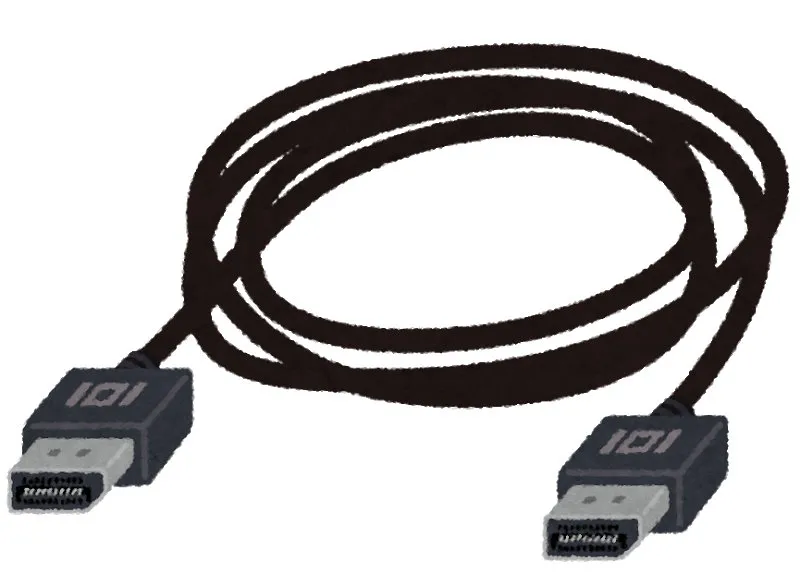
What DisplayPort is
A video connector defined by VESA, the PC industry’s standards body. Found on graphics cards, some Macs, and gaming monitors. Tends to lead HDMI on high resolution and high refresh rates.
Short answer: if you’re targeting 4K-or-above resolution, 120 Hz / 240 Hz refresh, or driving multiple monitors over a single cable with MST (Multi-Stream Transport), DisplayPort is the pick.
The reason is that DisplayPort was designed from the start around PC displays. Where HDMI leans toward home electronics, DisplayPort prioritized high resolution, high frame rates, and bandwidth efficiency from day one. Generation for generation, DisplayPort often arrives first.
Version differences are gentler than HDMI’s
| Ver | 1.2 | 1.4 | 2.0 |
|---|---|---|---|
| Max resolution | 4K / 5K | 8K | 16K |
| HDR | No | Yes | Yes |
| Max Hz at FHD | 240 Hz | 240 Hz | 240 Hz+ |
| Max Hz at 4K | 60 Hz | 120 Hz | 240 Hz+ |
Older versions still cover 4K 60 Hz, so version anxiety isn’t as sharp as with HDMI.
Watch out: turning a monitor off resets your window layout
DisplayPort has one quirk worth knowing about. When the monitor’s power is cut, the PC reads it as “the monitor has been disconnected”.
In a dual-monitor setup, windows and icons then collapse onto the primary screen. Powering the monitor back on doesn’t restore their positions.
Workarounds: let the monitor sleep instead of cutting power; use HDMI instead of DisplayPort; or hunt for a setting that disables DDC/CI. Worth knowing before you buy if it’s the kind of thing that’ll bother you.
USB-C (DisplayPort Alt Mode) — bundling a laptop into one cable
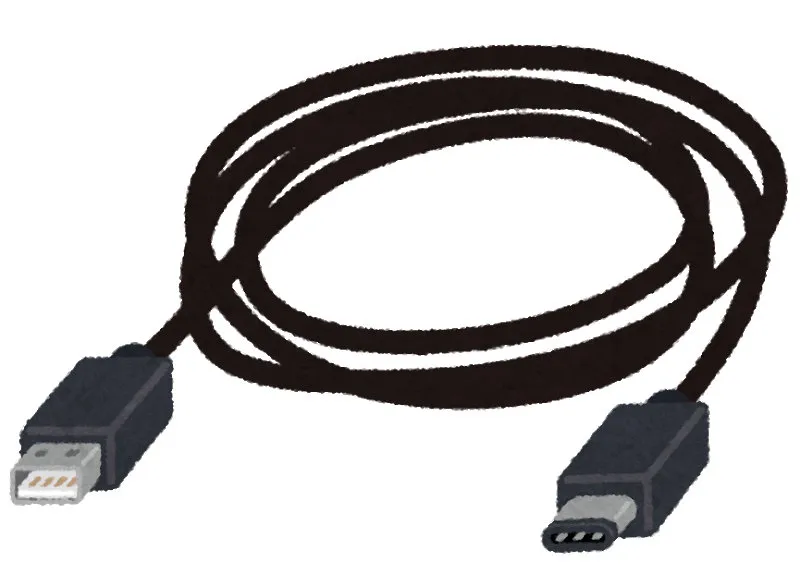
What USB-C Alt Mode is
A mechanism that uses some of the USB Type-C connector’s pins to carry a DisplayPort signal (DisplayPort Alternate Mode). Video, data, and power (USB Power Delivery) ride over a single cable. Thunderbolt uses the same physical shape.
Short answer: this fits people who want to handle a laptop with a single monitor. Video, peripherals, and power (up to around 100 W) all run over one cable.
The reason is the cable count. Plug one USB-C cable in when you’re back at the desk and external monitor, keyboard, mouse, and charging all come back at once.
Watch out: what the device supports decides what you get
USB-C is the name of the physical connector. Whether it can carry video depends on whether the device supports DisplayPort Alt Mode or Thunderbolt.
- Whether the laptop’s USB-C port supports video output (check the spec sheet for “video output”, “DisplayPort Alt Mode”, or “Thunderbolt 3 / 4”)
- Whether the cable supports video (a charge-only cable won’t carry a picture)
- Whether the monitor has a USB-C input (if not, you’ll need a USB-C → HDMI / DisplayPort adapter)
If those three don’t line up, no picture. Reading spec sheets takes more work than with HDMI.
DVI — the pioneer of digital video; not worth buying new
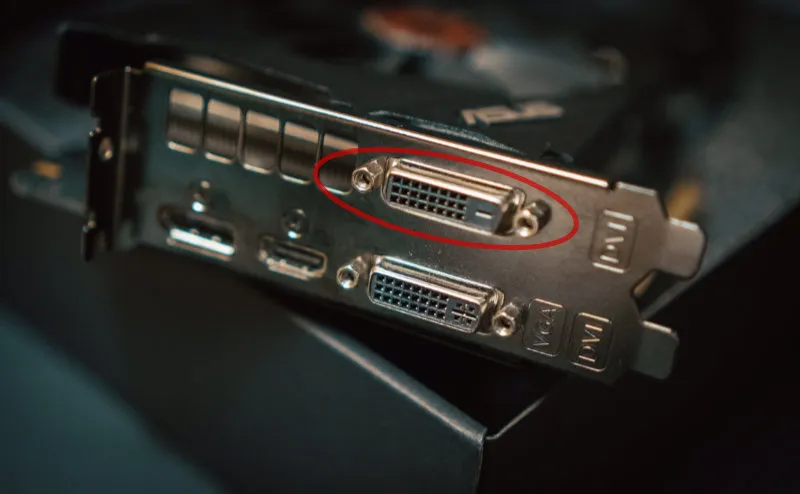
What DVI is
A digital video connector introduced in 1999. It became widespread in the PC industry as the successor to VGA. Still found on some Windows desktops and business monitors, but rarely on laptops or TVs.
Short answer: DVI handles FHD (1920×1080) without issue. Treat it as a way to keep DVI gear you already own working — not as something to buy into.
The reason is that the connector is physically large, and on current-generation hardware it’s been replaced by HDMI / DisplayPort. 4K isn’t really supported either (DVI Dual-Link covers some cases), so as a new option it’s a leftover.
It still earns its keep when connecting a company desktop to a monitor, or pulling video from an older GPU. For a fresh setup, pick HDMI or DisplayPort and skip DVI.
VGA (D-Sub) — analog, for keeping older gear alive
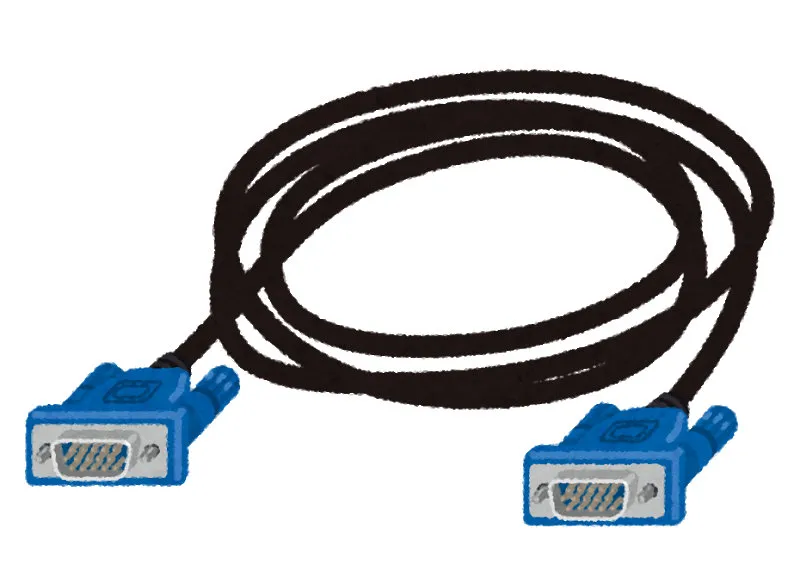
What VGA (D-Sub 15-pin) is
An analog video connector standardized by IBM in 1987. It was the PC-to-monitor standard until the 2000s, but adoption fell as the industry went digital (DVI → HDMI / DisplayPort). Still seen on projectors and older conference-room equipment.
Short answer: because the signal is analog, resolution and image quality fall short of modern standards. Drop it from any new-purchase shortlist.
The reason is signal degradation — cable length and quality both eat into image quality. The practical resolution ceiling is FHD (the published numbers run higher, but blurring becomes visible).
Even so, conference-room projectors that are VGA-only are still around. If your laptop only has USB-C, keeping a single USB-C → VGA adapter in your bag covers you on business trips.
Comparison — five connectors by resolution, best use, and adoption
| Connector | Max resolution (latest gen) | Best use | Adoption |
|---|---|---|---|
| HDMI | 10K (Ver. 2.1) | TVs, consoles, general PCs | Highest |
| DisplayPort | 16K (Ver. 2.0) | Gaming, high resolution, multi-monitor | Medium (PC-centric) |
| USB-C Alt Mode | 4K–8K (device-dependent) | Laptop + one external monitor | Growing |
| DVI | FHD / some 4K | Reusing existing PC gear | Declining |
| VGA | FHD (in practice) | Older gear, older projectors | Declining |
(Figures are the published maxes of each standard’s latest revision. Real-world performance depends on cable quality and device-side implementation.)
How to choose — three questions, in order
Short answer: walk through “do I also connect a TV or a console?” → “is this for gaming or 4K high-refresh?” → “do I want a laptop bundled into one cable?” in that order.
1. Also connecting a TV or console → HDMI
For home electronics, HDMI is essentially the only option. If you’re sharing with a PS5, Switch, Apple TV, or a recorder, going HDMI across the board lets you reuse cables.
2. Gaming, 4K 120 Hz, multi-monitor → DisplayPort
PC gamers targeting 144 Hz / 240 Hz, anyone wanting 4K 120 Hz for games, or anyone running three or more monitors off a single cable via MST — for any of these, DisplayPort.
3. Docking a laptop with a single cable → USB-C
If the goal is “plug one USB-C in after coming home and external monitor, keyboard, mouse, and charging all wake up”, that’s USB-C. A USB-C → HDMI / DisplayPort converter cable also covers monitors that don’t have USB-C input.
FAQ
Q. Is there an image-quality difference between HDMI and DisplayPort? A. Compared at the same version generation, same resolution, and same refresh rate, there’s no visible difference. The gap shows up only where one supports a higher maximum resolution or refresh rate. In day-to-day FHD / 4K 60 Hz use, they’re effectively tied.
Q. I tried to send video over USB-C and got nothing. What do I check? A. Three things. (1) The laptop spec sheet should say “video output supported”, “DisplayPort Alt Mode”, or “Thunderbolt”. (2) The cable should be video-capable, not charge-only (look for the USB-C logo and the bandwidth label). (3) The monitor should accept USB-C input, or you should be running it through a USB-C → HDMI / DisplayPort adapter.
Q. If I convert a DVI cable to HDMI, can I drive 4K? A. Generally no. DVI Single-Link tops out around FHD 60 Hz and doesn’t reach the bandwidth 4K needs. For 4K, use a native HDMI or DisplayPort port on both the PC and monitor sides.
Q. For gaming, I’m stuck between HDMI 2.1 and DisplayPort 1.4. Which one? A. If both your GPU and monitor support HDMI 2.1, you can line up 4K 120 Hz and variable refresh rate (VRR) cleanly. For an older monitor / GPU combo, DisplayPort 1.4 opens up more options. Check the ports on your GPU and monitor first — that makes the call a lot easier.
Wrapping up
Picking between the five video connectors comes down to use case.
When in doubt, HDMI. It’s compatible with the whole home-electronics stack, including TVs and consoles, so one cable tends to cover most of the setup.
For serious PC gaming or 4K high refresh, DisplayPort. For docking a laptop with a single cable, USB-C Alt Mode.
Treat DVI and VGA as options only for keeping existing gear running. There’s almost no scenario where they’re a positive new-purchase pick.
How to pick the cable itself — length, connector shape, version — is covered for HDMI in a separate piece.
→ Three things to check when picking an HDMI cable (length, connector, version)