
Contents12
- The short answer — for heavy number entry, a USB 2.4GHz external keypad is the first pick
- Is the laptop’s built-in keypad enough — check this first
- Connection type — USB 2.4GHz, Bluetooth, wired
- USB 2.4GHz (wireless receiver)
- Bluetooth
- Wired USB
- Comparison: USB 2.4GHz / Bluetooth / laptop built-in
- Three keys you don’t want to miss — Tab, Backspace, calculator
- Key feel — scissor switches if it sits next to a laptop
- What to actually buy
- FAQ
- Wrapping up
2026 update: Ported from the old VuePress blog. The basic structure of numeric keypads has not changed much since 2021, so the framework still holds, but the specific product links need to be swapped for current models.
When you keep typing numbers in Excel, the small cost of reaching for the number row on a full-size keyboard quietly adds up. For accounting, inventory, or data entry work — anything where you punch in numbers many times a day — a dedicated keypad ends up faster.
This piece walks through how to pick a numeric keypad for Windows, in this order: is the laptop’s built-in keypad enough, and if not, USB or Bluetooth? By the end you should have a clear shape of the one unit that fits you.
The short answer — for heavy number entry, a USB 2.4GHz external keypad is the first pick
Short answer: first check whether the laptop’s built-in keypad is enough. If it isn’t, the default Windows keypad shape is USB 2.4GHz wireless, slim, with a calculator key.
Three reasons:
- USB 2.4GHz has less latency than Bluetooth — the dedicated receiver link is less affected by the surrounding environment
- A slim profile (scissor switch or pantograph) matches the key height of a laptop — minimal step when you place them side by side
- A calculator key earns its space if you open the calculator many times a day — you can launch it without your eyes moving
For people whose work is fully contained on a laptop, or whose desk doubles as a Windows + iPad setup, the decision axis is different. The sections below walk through it.
Is the laptop’s built-in keypad enough — check this first
Short answer: if you type numbers a few dozen times a day, the laptop’s built-in keypad is enough. If you punch in real volume every day, switching to an external one is easier on your hands.
The reason is structural: a laptop with a built-in keypad is wider, which shifts the home position to the left of body center. Type for long stretches and your right shoulder tends to creep forward.
What to check:
- How often you type numbers: hundreds of times a day → external; occasionally → built-in is plenty
- Body size: built-in keypads are usually only on 15.6-inch and larger models (depends on model)
- Key layout: NumLock and
00key placement vary by manufacturer, so if you already know one brand’s layout you can keep using it
If the built-in keypad doesn’t feel like enough, switch to external. The next section gets into connection types.
Connection type — USB 2.4GHz, Bluetooth, wired
Short answer: for a fixed PC setup, USB 2.4GHz; for sharing with a phone or tablet, Bluetooth; if you absolutely need zero latency, wired.
The reason is that each is good at a different scenario.
USB 2.4GHz (wireless receiver)
You plug a dedicated USB receiver into the PC. Less latency than Bluetooth, and fewer dropped keystrokes right after waking from sleep.
It uses one USB port, but there’s no pairing dance. On Windows it just works the moment you plug it in.
For a fixed keypad setup on a desktop or laptop, this is the format I’d recommend first.
Bluetooth
Connects to the PC’s built-in Bluetooth. No receiver needed, so it doesn’t take up a USB port.
Handy if you want to share the same hardware with an iPad or phone. The trade-off is that in congested environments a keystroke can drop for a moment. There’s also a bit of a wait after sleep wake (environment-dependent).
Wired USB
Connects to the PC by cable. Guaranteed zero latency.
The cost is desk handling: placed to the right of a tenkeyless keyboard, the cable tangles into the path your hand takes. Unless you’re an accountant typing numbers all day, wireless is plenty.
Comparison: USB 2.4GHz / Bluetooth / laptop built-in
Lining all three up. Price and latency feel are reference values from when I bought mine (varies by model and environment).
| Aspect | USB 2.4GHz | Bluetooth | Laptop built-in |
|---|---|---|---|
| Connection | USB receiver | PC’s built-in Bluetooth | Integrated into the laptop |
| Latency concern | Low | Slightly higher (environment-dependent) | None |
| Stability | Good | Fair | Good |
| Cross-device use | Limited (PC-oriented) | Good (works with phone/tablet) | None (laptop only) |
| USB port use | 1 port | None | None |
| Price range | 2,000–4,000 yen | 3,000–6,000 yen | Included in laptop price |
| Portability | Carry with the receiver | Carry on its own | Stays with the laptop |
| Calculator key | Depends on model | Depends on model | Most models don’t have one |
Rough decision guide:
- Windows desktop / fixed laptop setup → USB 2.4GHz
- Want to share with iPad/phone, or USB ports are scarce → Bluetooth
- About to replace the laptop / light number entry → consider a model with a built-in keypad
Three keys you don’t want to miss — Tab, Backspace, calculator
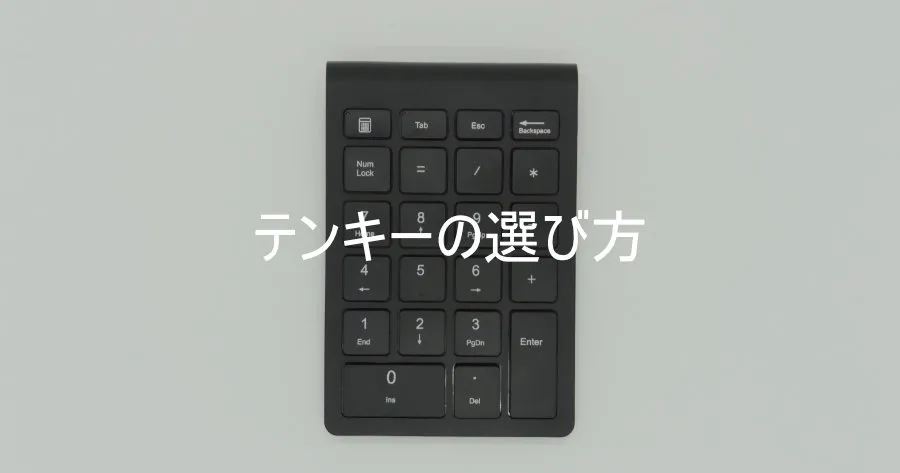
Among the keys on the keypad body, three are ones Excel-heavy users shouldn’t drop:
- Tab: horizontal cell movement in Excel. Combined with Enter (down), you can fill in a whole table without leaving the keypad
- Backspace: instant fix for a wrong digit. You hit it constantly in numeric entry, so a dedicated key matters
- Calculator: launches the Windows Calculator app with one key. Earns its keep during expense work
A 00 (double-zero) key only matters if you enter monetary amounts a lot. Outside accounting work, it’s lower priority.
You can confirm these keys are present by looking at the key layout photo on the product page. Spec sheets alone sometimes don’t tell you whether “Tab” and “Backspace” are there, so always check the image.
Key feel — scissor switches if it sits next to a laptop
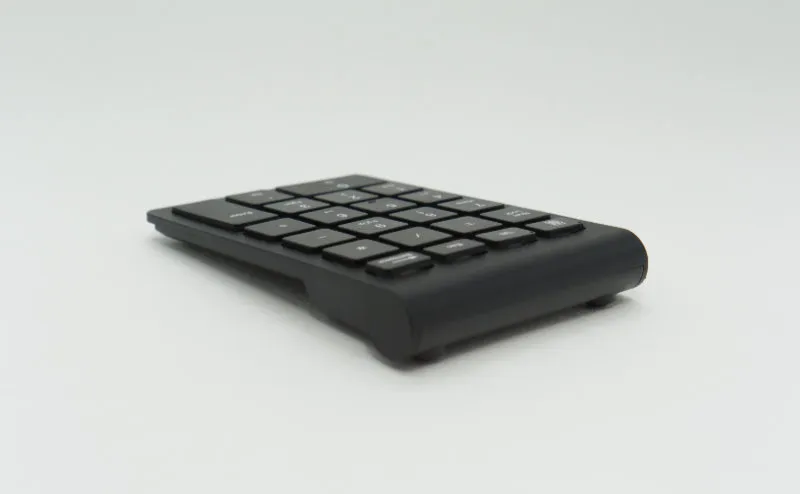
Short answer: if you place it next to a laptop, a scissor switch or pantograph matches the key height and is easier to work with.
- Membrane: cheap. Long key travel — placed next to a laptop, the height difference feels off
- Pantograph: the slim format widely used in laptops. Compact, but the feel varies a lot between products
- Scissor switch: refined version of the pantograph. Slim with a clear click feel. Less tiring over long sessions
For dedicated number entry, scissor switches are the first pick.
What to actually buy
For a model that hits all three of USB 2.4GHz, scissor switches, and a calculator key, I’ve written a separate review of the Belis wireless numeric keypad. It gets into the key feel on an actual unit, how loud the LED is, and battery life — so if you want to confirm whether a specific model matches the conditions above, read them together.
FAQ
Q. If I buy a laptop with a built-in numeric keypad, do I still need an external one? A. If you type numbers a few dozen times a day, a laptop with a built-in keypad is enough. The drawbacks are a wider body, a home position that sits to the right of center, and key layouts that vary by manufacturer — so if you punch in numbers in real volume every day, an external keypad is easier on your hands.
Q. USB 2.4GHz vs. Bluetooth — which is more stable? A. For a fixed setup at a PC, USB 2.4GHz is more stable. The dedicated receiver link has less latency and is less likely to keep you waiting right after sleep wake. Bluetooth can drop a keystroke for a moment in noisy or congested environments.
Q. Should the numeric keypad have a calculator key? A. If you launch the calculator often — expense claims, rough stock counts — go with a model that has a dedicated calculator key. Compared to a keyboard shortcut you have to remember, your eyes move less, and the calculator appears the instant you press the key.
Q. Can I use the same numeric keypad on a Mac? A. The number keys themselves usually work, but the calculator key and some function keys may not respond on macOS, or may be recognized as different keys. If you plan to use it on a Mac, it’s safer to confirm explicit Mac support on the product page before you buy (depends on product and OS version).
Wrapping up
For a numeric keypad on Windows, first check whether the laptop’s built-in one is enough. If it isn’t, the split is: USB 2.4GHz for a fixed PC setup, Bluetooth for sharing with other devices.
Key format: scissor switch or pantograph. Confirm from the product photo that Tab, Backspace, and the calculator key are present.
With those constraints, it’s hard to pick wrong. If you want to know the key feel on a specific model before buying, the Belis wireless numeric keypad review sketches it in concrete detail.