
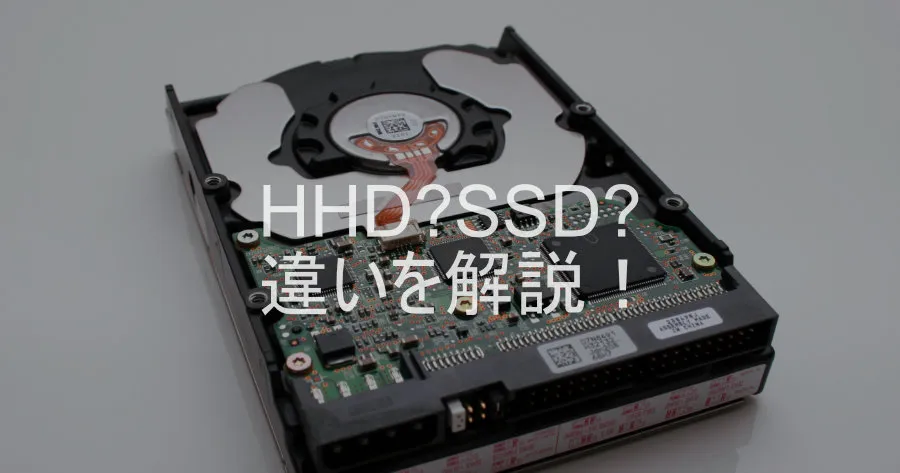
Contents10
- The short answer — SSD for system, HDD for bulk storage
- The main differences between HDD and SSD
- What an HDD is — a spinning disk that stores data magnetically
- What an SSD is — semiconductor memory that stores data electrically
- How to split the workload between SSD and HDD — 2026 edition
- Laptops / general use — a single SSD is enough
- Self-built PC / creators — two drives, SSD + HDD
- Reviving an old HDD machine — SSD swap is the biggest win
- FAQ
- Wrapping up
2026 update: ported from the old VuePress blog. When this was first written in 2021, the practical answer was a hybrid setup — “OS on SSD, data on HDD”. By 2026, SSD prices have dropped enough that SSD is the default on both laptops and self-built desktops. HDDs are now narrowed to backups, video footage, and other multi-TB archival use. The underlying framework — how the two technologies differ — still holds.
A slow PC, or a fresh purchase where you can’t tell whether to go SSD or HDD — this is where a lot of people stall. Once the structural difference is clear, the call gets easier.
This piece lines up HDD vs SSD on speed, cost per GB, lifespan, noise, and shock resistance, and sums up how to choose in 2026.
The short answer — SSD for system, HDD for bulk storage
In 2026, if you’re buying or building new, the system drive that holds the OS and apps should be an SSD (NVMe if possible). HDDs work as secondary storage when you want several TB on the cheap.
The reason: SSD prices have fallen significantly over the past five years, and 1 TB-class drives now sit in the mainstream price band. HDDs still win on cost per TB, and they keep their edge in the 4 TB / 8 TB range.
For example: if you’re replacing a laptop, an SSD-only setup is plenty. If you’re building a desktop and you stockpile video footage or photo RAWs, a two-drive setup of 1 TB SSD (system) + 4 TB HDD (data) is the realistic call.
One thing to note: rather than keep using an old HDD-only PC, swapping the boot drive to SSD is usually the single most effective upgrade. It often costs less than buying a new machine.
The main differences between HDD and SSD
Looked at across six axes, SSD wins on “fast, quiet, shock-resistant”; HDD wins on “cheap at high capacity, long track record”.
| Aspect | HDD | SSD |
|---|---|---|
| Read/write speed | Slow (around 100–200 MB/s sequential) | Fast (SATA up to ~550 MB/s, NVMe several thousand MB/s) |
| Cost per GB | Cheap (clear win at 4 TB and above) | Higher (though 1 TB-class is now mainstream-priced) |
| Lifespan | Mechanical wear causes failure | Limited write endurance, but strong against shock |
| Noise | Spin and seek noise | Silent |
| Shock resistance | Weak (a drop while running often kills it) | Strong (no moving parts) |
| Price guide (1 TB) | A few thousand yen and up | Around 10,000 yen and up (NVMe runs higher) |
The reason is structural: the two are built on fundamentally different mechanics. HDDs record magnetically on a physically spinning disk; SSDs record electrically on semiconductor memory. That single difference drives every row in the table.
One thing to note: the table is a general trend. Between NVMe SSD and SATA SSD, the speed gap widens further by several times. See the FAQ for more.
What an HDD is — a spinning disk that stores data magnetically
An HDD (Hard Disk Drive) writes and reads data magnetically on a spinning metal platter. It’s a mechanical device with moving parts — structurally closer to a CD player than to a memory chip.
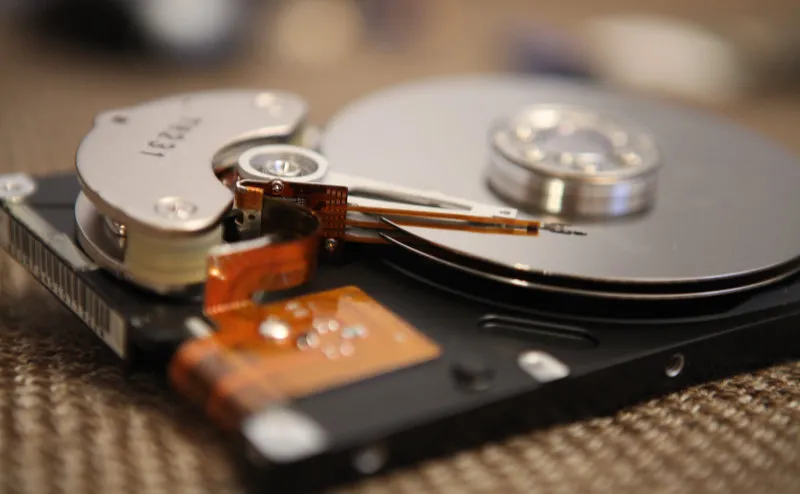
The reason it’s slower is mechanical: the platter spins at high speed and the magnetic head physically moves to the right location, so there’s always a physical motion in the loop. That is the root cause of “slow reads, audible noise, fragile to shock”.
For example: a typical 3.5-inch HDD spins at 5400 rpm or 7200 rpm. The seek noise (the head moving) and the spin noise are constant, which makes HDDs hard to live with if you’re going for a silent build.
One thing to note: the HDD’s strength is cheap capacity. In the 4 TB / 8 TB / 16 TB range, the cost per TB is still lower than SSD in 2026. For backups, video footage, and NAS use, HDDs are very much still in service.
What an SSD is — semiconductor memory that stores data electrically
An SSD (Solid State Drive) writes and reads data electrically on flash memory (semiconductors). It has no moving parts at all — structurally closer to a scaled-up USB stick.
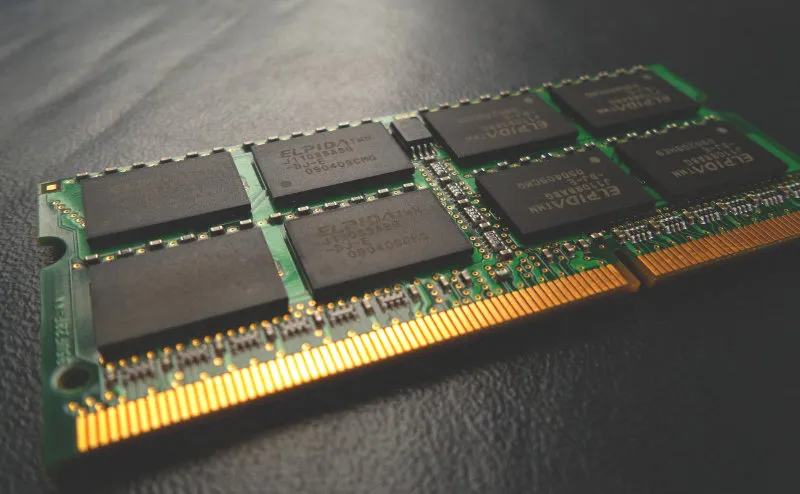
The reason it’s fast is structural: 0 / 1 is encoded by the presence or absence of electrons in a semiconductor, so no physical movement is needed. That is the root cause of “fast, silent, shock-resistant, light”.
For example: booting the same OS, an HDD machine often takes 30–60 seconds, where an SSD machine is up in around 10 seconds. This is why putting an SSD into an older PC feels so different.
One thing to note: SSDs have a finite number of writes (often quoted as TBW, Total Bytes Written). For normal office, gaming, or development workloads, hitting that ceiling is rare. In everyday use, HDDs more often fail mechanically before an SSD wears out.
How to split the workload between SSD and HDD — 2026 edition
The system drive (OS and apps) goes on SSD. The data warehouse (photos, video, backups) goes on HDD. That is the 2026 baseline.
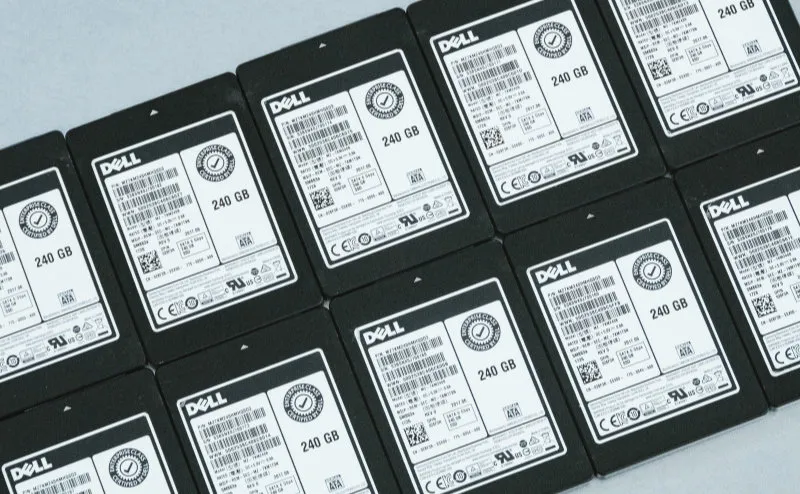
The reason: boot and app launch speed obviously benefit from SSD, while archival storage is accessed less often, so the speed gap is harder to feel there. Letting the HDD — which wins on cost per TB — handle the “cold” data is the rational split.
Laptops / general use — a single SSD is enough
For a laptop or a typical desktop, a single SSD (512 GB to 1 TB) is the mainstream setup. Skipping the HDD also means lighter weight, less noise, and lower power draw.
For gaming or video editing, target 1 TB or 2 TB.
Self-built PC / creators — two drives, SSD + HDD
If you carry photo RAWs, video footage, or a large game library, a two-drive setup of SSD (system) + HDD (data) is still the right call.
- System = NVMe SSD 1 TB
- Data = HDD 4 TB or more
Reviving an old HDD machine — SSD swap is the biggest win
A lot of “my PC feels slow” complaints trace back to the HDD. Adding RAM helps less than swapping the boot drive to SSD. It’s the realistic move when the budget can’t stretch to a new machine.
The standard tool kit is a SATA SSD plus a USB enclosure for migrating the data.
FAQ
Q. Is a hybrid SSD + HDD setup still worth doing? A. On a self-built PC or a desktop where you need a lot of capacity, yes. Splitting roles — SSD for system, HDD for data and backups — still makes sense. Laptops, on the other hand, often have only a single SSD slot, so a hybrid setup is hard to assemble.
Q. NVMe SSD or SATA SSD — which one? A. If the motherboard or laptop has an M.2 slot that supports NVMe, NVMe is the first pick. Sequential reads and writes are several times faster than SATA SSD. That said, for OS boot and office work the felt difference is small; it pays off on large file copies and video editing. If cost is the constraint, SATA SSD is still perfectly usable.
Q. How long does an SSD last? A. Manufacturer-quoted TBW (total bytes written) for a 1 TB-class drive lands around 300–600 TBW. At everyday workloads — even 50 GB written per day works out to 18 TB per year — that’s more than 10 years on paper. Most drives get retired for capacity or standards reasons before the write limit hits. The sudden-failure risk is lower than HDD, but not zero.
Q. How do I migrate from HDD to SSD? A. Two main routes. (1) Clone the whole disk, OS and all, with cloning software (often shipped by the SSD manufacturer). (2) Reinstall the OS clean and copy the data over via an external enclosure. Cloning is easier on paper, but you can trip over Windows licensing or drive letters. If you don’t mind reinstalling, route (2) ends up cleaner. Take a backup before either route.
Wrapping up
The 2026 baseline is “SSD for system, HDD for bulk data”. For laptops and general use, a single SSD is enough on its own.
The HDD’s role has clearly shrunk compared to five years ago. It’s narrowed to use cases where you need a lot of capacity cheaply — backups, video footage, photo RAWs.
If you want an old HDD machine to feel faster, an SSD swap comes before adding RAM. It’s worth considering before jumping straight to a full replacement.