

Contents17
- The short answer — 4K isn’t for everyone, pick by use case
- What 4K actually means
- Comparison: how 4K, WQHD, and FHD differ
- Four things to check when picking a 4K monitor
- Screen size: 4K pays off at 28 inches and up
- Note: laptop displays are a separate conversation
- HDR: useful for film and games, not for documents
- Note: HDR also needs OS and content support
- Color coverage: aim for 90% or higher for creative work
- Panel type: IPS for text, photo, and video; TN or OLED for competitive gaming
- OLED has become a real option
- The trap: HDMI cable and DisplayPort spec
- Recommended models (by use case)
- sRGB 100%, for text and photo work — I-O DATA 27-inch 4K
- Around NTSC 90%, for video and film editing — I-O DATA 28-inch 4K
- FAQ
- Wrapping up
2026 update: ported from the old VuePress blog and reshaped from a 2026 vantage point. 4K monitors are cheaper and more common than they were in 2021, but “should everyone buy 4K” still depends on the use case. Specific product links need to be swapped for current models before this goes live.
“I want a 4K monitor, but I can’t figure out which one to pick.” “What’s the best 4K for the money?” I get asked some version of this often. The trouble is, the conversation usually jumps straight to comparing specific models before settling whether 4K is even the right call.
This piece is the step before that — the lens for deciding whether 4K is what you actually want, and if it is, the four things to check.
The short answer — 4K isn’t for everyone, pick by use case
Short answer: a 4K monitor is for people who do photo or video editing, watch 4K content, or want a wider workspace on a 28-inch-or-larger panel. For text-heavy work or light gaming, WQHD is the better value.
Three reasons:
- You can’t feel the difference on a small panel — at 27 inches or below, scaling becomes mandatory, and 4K’s pixel density gets thrown away
- GPU load jumps — for games and real-time 3D, the rendering cost more than doubles going from FHD to 4K
- You also need newer cables and ports — HDMI 2.0a or DisplayPort 1.4 minimum, and older PCs can’t output it
Conversely, 4K earns its keep when pixel density flows directly into the output — previewing photos at native resolution, checking 4K video footage 1:1, packing dense text onto a 28-inch-or-larger panel.
What 4K actually means
4K (UHD): 3840×2160 pixels. Double FHD (1920×1080) on each axis — four times the area. Note that “DCI 4K” (4096×2160, the cinema standard) is a different spec; almost every consumer monitor sold as 4K is the 3840×2160 UHD variant.
Comparison: how 4K, WQHD, and FHD differ
Short answer: higher resolution gives you more workspace, but it also raises GPU requirements, monitor price, and how much you have to fight scaling.
| Aspect | FHD (1920×1080) | WQHD (2560×1440) | 4K (3840×2160) |
|---|---|---|---|
| Day-to-day feel | No visible pixel grid at 24 inches. Fine for text-heavy work | Sweet spot at 27 inches. Runs at 100% scaling | 28 inches or larger needed; below that, scaling is mandatory |
| Price range (27-inch IPS) | 20,000–30,000 yen | 30,000–50,000 yen | 50,000–80,000 yen |
| GPU needed (gaming) | Entry-level GPU at 60fps | Mid-range required | High-end recommended |
| Best fit | Writing, office work, light gaming | Programming, streaming, esports | Photo/video editing, large displays, film viewing |
Prices reflect my read of Japanese retail as of May 2026. They move with the exchange rate and product cycles, so check again at purchase time.
Four things to check when picking a 4K monitor
Short answer: once you’ve decided on 4K, check screen size, HDR support, color coverage, and panel type. The HDMI cable is a separate after-purchase trap worth knowing about.
If any of those four are off, you end up with “I bought 4K but it doesn’t feel any different” — which is the failure mode this section is built to prevent. One at a time below.
Screen size: 4K pays off at 28 inches and up
Short answer: to get value from 4K’s pixel density, go 28 inches or larger. Below 27 inches you’re forced into scaling, and the upside thins out.

The reason: 4K packs four times FHD’s pixels, but on a physically small panel those pixels get so small the text becomes unreadable. You end up turning on OS-level scaling to bring it back to a legible size — and once scaled, the “more workspace” upside evaporates.
A concrete example: a 24-inch 4K at 100% scaling has text too small for daily use. Push it to 150% and the effective resolution lands near WQHD — at which point WQHD would have been the simpler call.
Size target: 28 to 32 inches for desktop use. Past 35 inches you start approaching living-room TV territory, which is too large for a close-up desk setup.
Note: laptop displays are a separate conversation
Picking 4K on a 13–15-inch laptop only makes sense if you’re after Retina-style sharpness for its own sake. The workspace doesn’t grow.
HDR: useful for film and games, not for documents
Short answer: HDR widens the brightness range, especially in dark scenes. It pays off for video and games; for document work, the benefit is thin.

The reason: HDR (High Dynamic Range) handles a wider span between the darkest and brightest values than standard signal. The difference shows up in night-sky shots and in backlit scenes where bright and dark sit in the same frame.
For example, on a non-HDR monitor a dark scene crushes to black and you can’t tell what’s on screen. On an HDR10 panel the same scene reads — you can make out the shape of objects in the shadows.
How to read the spec sheet: look for “HDR10”, “HDR10+”, or “Dolby Vision”. No mention means no support. Be careful with “HDR Ready” or “HDR Compatible” — those only mean the monitor accepts an HDR signal, not that it can actually display HDR meaningfully.
Note: HDR also needs OS and content support
Even with an HDR monitor, Windows HDR settings and the content itself both have to be HDR-aware. Miss either and the feature doesn’t engage.
Color coverage: aim for 90% or higher for creative work
Short answer: for photo, video, or illustration, target sRGB 100% or roughly 90% on NTSC / Adobe RGB. For text work it doesn’t matter much.

The reason: color coverage (the gamut) is the range of colors a monitor can actually display. On a low-gamut panel, what should be a vivid red or green comes out muted.
A concrete example: editing photos on a cheap monitor that covers only sRGB 70% often results in “the version everyone else sees” being more saturated than what you edited. Reviewing on the wider-gamut side is the safer move.
How to read the spec sheet: figures like “sRGB coverage 100%”, “Adobe RGB 90%”, or “NTSC 90%” expressed as percentages. No percentage listed usually means the panel isn’t wide-gamut.
Panel type: IPS for text, photo, and video; TN or OLED for competitive gaming
Short answer: for general use, IPS is the default. Wide viewing angles, minimal color shift. Only consider TN or OLED when response time is the top priority for competitive games.
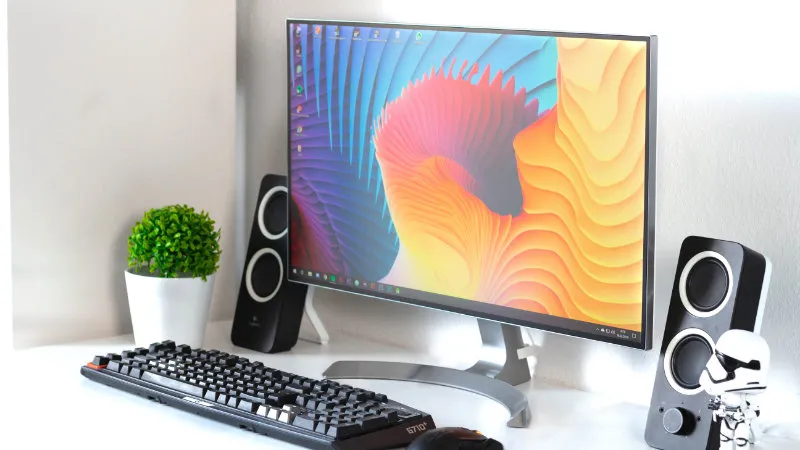
The reason: IPS holds its color when viewed off-axis, which is what you want for photo and video review. TN responds faster but has narrower angles and washed-out color. VA is strong on blacks but slower to respond.
For example, in a dual-monitor setup with one panel angled inward, a TN monitor visibly shifts color across the screen depending on the angle. An IPS panel keeps the tone consistent across both.
OLED has become a real option
In 2021 I’d have said OLED monitors barely existed. As of 2026 you can find 27-inch-class OLED desktop monitors in the 100,000-yen range. Blacks and response time beat IPS, but burn-in remains a risk — worth thinking about if you leave static text on screen for long stretches.
The trap: HDMI cable and DisplayPort spec
Short answer: for 4K HDR at 60Hz, you need HDMI 2.0a or higher, or DisplayPort 1.4 or higher. With an older cable, the signal silently drops back to FHD.
The reason: HDMI and DisplayPort tie supported resolution, refresh rate, and color depth to the version of the spec. And cables don’t advertise their version on the outside.
| Signal | Required spec |
|---|---|
| 4K 60Hz SDR | HDMI 2.0 / DisplayPort 1.2 |
| 4K 60Hz HDR | HDMI 2.0a / DisplayPort 1.4 |
| 4K 120Hz HDR | HDMI 2.1 / DisplayPort 1.4 (DSC) |
Even the cable in the monitor box doesn’t always meet the spec the monitor itself is rated for. If colors look washed out or the resolution caps at FHD straight out of the box, suspect the cable and the PC’s output port before anything else.
Recommended models (by use case)
The picks below were selected when this article was written. From a 2026 vantage point, always verify the current successor or an equivalent model in the same price band before linking.
sRGB 100%, for text and photo work — I-O DATA 27-inch 4K
Covers sRGB 100%, so it holds up for photo color checks. A 27-inch 4K with a matte finish, so desk-lamp reflections don’t get in the way. VESA-compatible for swapping onto a monitor arm.
| Spec | Value |
|---|---|
| Size | 27 inches |
| Panel type | ADS (IPS-equivalent) |
| Resolution | 4K (3840×2160) |
| Surface | Matte |
| Color coverage | sRGB 100% |
| HDR | HDR10 |
| VESA | Yes |
Around NTSC 90%, for video and film editing — I-O DATA 28-inch 4K
NTSC 88%, tuned toward the video-editing gamut. The 28-inch size also lets 4K’s density actually breathe.
| Spec | Value |
|---|---|
| Size | 28 inches |
| Panel type | IPS |
| Resolution | 4K (3840×2160) |
| Surface | Matte |
| Color coverage | NTSC 88% |
| HDR | HDR10 |
| VESA | Yes |
FAQ
Q. Who actually needs a 4K monitor? A. People doing photo or video editing, watching 4K content, or wanting more workspace on a 28-inch-or-larger screen. For text-heavy work or competitive gaming, WQHD is enough.
Q. Do I need to use scaling on a 4K monitor? A. On both Windows and macOS, 4K at 27 inches or below all but requires 125–150% scaling. If you’re going to scale anyway, WQHD often looks cleaner out of the box.
Q. 21:9 ultrawide or 16:9 4K — which is better? A. If you want more horizontal workspace, a 21:9 WQHD-class panel (3440×1440) is easier to live with. If you want vertical room and pure pixel density, 16:9 4K. Pick by use case.
Q. Which HDMI cable should I use? A. HDMI 2.0a or higher for 4K HDR; HDMI 2.1 for 4K at 120Hz. The cable in the monitor box doesn’t always meet that spec, so check before you blame the monitor.
Wrapping up
A 4K monitor is gear for people whose output benefits from pixel density. If that’s you, check four things — 28 inches or larger, HDR, around 90% color coverage, IPS — and you’ll land somewhere reasonable.
If it’s not you, WQHD wins on price, GPU load, and avoiding the scaling fight. The starting question is less “should I buy 4K” and more “does my actual work want that density”.